How to Write Effective Test Cases for CAPTCHA: Ultimate Guide
CAPTCHA test cases have to prove two things at once: bots get stopped, and real people get through without a fight. Most teams check that the widget shows up and call it done. That misses the server that never verifies the token and the audio option that doesn't play. This guide takes the general rules for how to write test cases and applies them to CAPTCHA, with examples you can reuse.
CAPTCHA testing checks that bots get blocked and real users get through. It covers function, security, usability, and accessibility.
Test the front-end widget and the back-end token check separately. A widget that looks fine can still sit in front of a server that accepts anything.
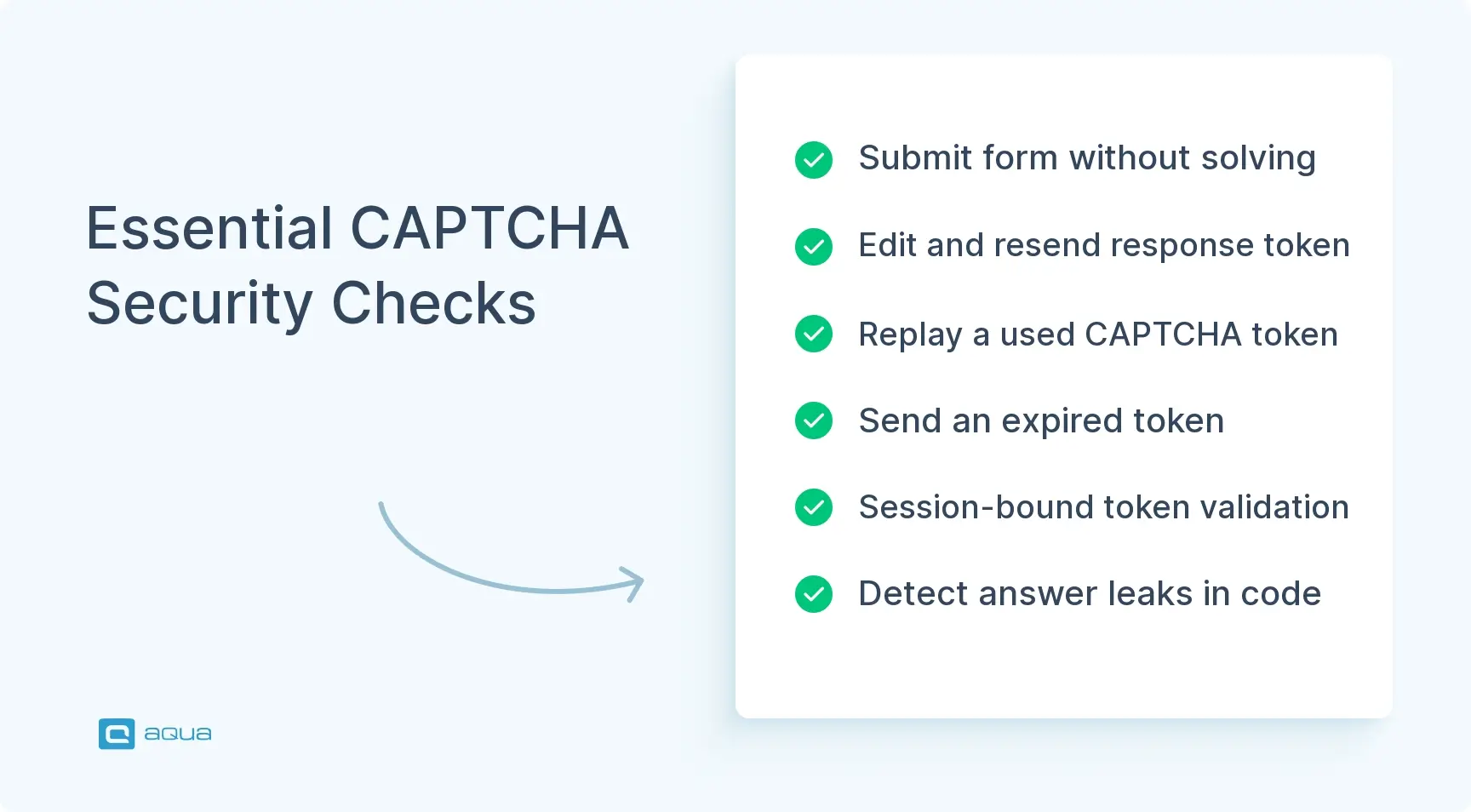
Security cases should try to break the CAPTCHA: submit without solving it, reuse a token, edit the response parameter, and wait for expiry.
The audio alternative, screen reader support, keyboard-only use, and browser zoom each need their own cases.
Don’t solve real CAPTCHAs in automation. Use test keys or mock the verification in staging.
A broken CAPTCHA either lets bots flood your forms or pushes real users away. Here’s how to write test cases that catch both.
What Is CAPTCHA Testing?
CAPTCHA testing checks that your human-verification step does its job. CAPTCHA stands for Completely Automated Public Turing test to tell Computers and Humans Apart, and your tests need to confirm it blocks automated traffic while letting people through with little friction.
Showing up on the page is the easy part. You also check how the answer gets validated, what happens on errors, whether the refresh button works, and how the widget behaves on a slow connection.
Each CAPTCHA type needs its own approach, because they work differently:
Text challenges – the user types distorted characters.
Image grids – the user picks matching pictures, like all the traffic lights.
Checkbox verification – “I’m not a robot,” often with a hidden risk check behind it.
Invisible scoring – no widget at all, just a risk score per request.
Audio alternatives – a spoken challenge for users who can’t see the image.
A broken setup causes two problems. Bots get through and the CAPTCHA protects nothing, or real users fail so often that they leave. Both cost you money, which is why solid captcha test cases matter.
How to Write Test Cases for CAPTCHA
To write a test case for captcha, start by naming the CAPTCHA you’re testing. Google reCAPTCHA v2, reCAPTCHA v3, hCaptcha, and custom builds all behave differently, and your expected results depend on which one you have.
Then sort your cases into five groups: functionality, security, usability, accessibility, and integration. Each case needs the same fields:
ID and title – a title that says what’s checked, such as “Verify the CAPTCHA refreshes after clicking refresh.”
Preconditions – CAPTCHA type, browser, device, and whether you’re testing the visual or audio version.
Steps – numbered, one action each.
Expected result – something you can measure, like “A new challenge loads within 2 seconds and differs from the previous one.”
Actual result and status – filled in during the run.
Vague cases like “test CAPTCHA works” can’t fail, so they teach you nothing. Write “Enter the correct solution within 2 minutes and confirm the form submits.”
Think about the user’s path too. What do they see before the CAPTCHA, and what happens after three wrong answers? Does the form keep their data? Context changes behavior, so account for it. A login CAPTCHA might only appear after failed attempts, while a registration form shows one right away.
Positive Test Cases for CAPTCHA
Positive test cases cover the path where users do everything right. Run these first.
Correct solution – Solve the challenge correctly. The user can continue and the form submits.
Every CAPTCHA type – Solve a text challenge, an image grid, and a checkbox. Each one should accept a correct answer.
Display on page load – Images render clearly, distorted text stays readable, and audio plays.
Refresh – Click refresh. A new challenge appears fast, with no full page reload.
Solution inside the validity window – If tokens last two minutes, an answer sent at 90 seconds should pass.
Persistence – Solve the CAPTCHA, navigate away, and come back. Check that behavior matches your design, whether that means staying validated or solving again.
Valid form data – Solving the CAPTCHA with empty required fields shouldn’t submit the form. The CAPTCHA works alongside the other validation.
CAPTCHA Test Cases for Different Scenarios
Real use is messier than the ideal run, so test the conditions your users actually have.
Slow networks – On throttled 3G, the challenge should load or time out with a clear message. Users shouldn’t stare at an empty box.
Dropped connection mid-challenge – Cut the network while solving, then reconnect. The user should recover without losing the form.
Browser coverage – Check Chrome, Firefox, Safari, and Edge, plus mobile browsers. Older versions sometimes break.
JavaScript disabled – A JavaScript-based CAPTCHA should fall back or show a message that explains the requirement.
Repeated failures – Fail five times. Document what should happen: a harder challenge, a temporary lockout, or an alternative check.
Back-to-back CAPTCHAs – Solve one and hit another right away. Some systems cache a recent pass to spare the user.
Session state – Test logged-in users and anonymous visitors separately. Many systems only challenge visitors who look suspicious.
Writing comprehensive CAPTCHA test cases means documenting dozens of scenarios across functionality, security, accessibility, and usability, and keeping all of them organized and traceable as your application evolves. This is where a centralized test management platform like aqua cloud transforms your workflow. With aqua, you can structure your CAPTCHA test cases with nested steps (think reusable login sequences that appear before CAPTCHA challenges), organize them by browser compatibility or security scenarios using tags and folders, and maintain full traceability between your security requirements and test coverage. What sets aqua apart is its domain-trained AI with RAG grounding, meaning when you need to generate test cases for a new CAPTCHA implementation. It learns from your project’s actual documentation, past test cases, and product specifics to generate CAPTCHA test scenarios that match your exact context, terminology, and security policies. Whether you’re testing reCAPTCHA v3 score thresholds or hCaptcha accessibility requirements, aqua brings structure, speed, and intelligence to your test documentation process.
Generate project-specific CAPTCHA test cases in seconds with AI that knows your system
Security cases test whether the CAPTCHA holds up against someone trying to get around it. Think like an attacker.
Submit without solving – Send the form with no CAPTCHA response. The back end should reject it, whatever the front end shows.
Fake token – Edit the response parameter in the POST request and send an invented value. It should fail.
Token reuse – Solve once, then replay the same token on a second submission. The second one must fail.
Expired token – Send a token older than its validity window. With a two-minute window, a five-minute-old token should be rejected.
Trigger thresholds – If CAPTCHAs only show after failed logins, make five bad attempts in ten seconds and confirm the challenge appears on the sixth.
Session binding – Take a token from one session and use it in another. It shouldn’t validate.
New attack surface – Check that the CAPTCHA itself doesn’t leak the answer in page source or cookies.
These overlap with penetration testing, but functional QA should still run the basics before release.
Usability Test Cases for CAPTCHA
Usability cases check that real users can get through without giving up.
Success rate – Set a target and measure it. For example, 80% of test users should pass within two attempts. If most need five tries, the challenge is too hard.
Character clarity – Can people tell a zero from a capital O? Nobody should need perfect eyesight to read your text challenge.
Image quality – Grid images should load quickly and look sharp, since pixelated tiles make the task close to impossible.
Error messages – “Incorrect solution, please try again” helps. “Validation failed” doesn’t. Check that a failed attempt also offers a fresh challenge.
Mobile separately from desktop – Check tap target size, readable text without zooming, and image grids that fit a small screen, in portrait and landscape.
Placement – The CAPTCHA should sit where people look for it, usually after the last field and before the submit button, with some space around it.
Accessibility Test Cases for CAPTCHA
Accessibility cases check that people with disabilities can pass. Many jurisdictions require it, and visual-only challenges lock out blind and low-vision users.
Audio alternative – Every visual CAPTCHA needs one. It should play clearly, allow volume changes, and let users pause and replay.
Screen readers – Test with NVDA, JAWS, and VoiceOver. The CAPTCHA should announce what it is, read instructions, and announce success and error messages.
Keyboard only – Tab through every element with visible focus. Enter or Space should activate controls, including the audio option.
Color contrast – Text should meet WCAG contrast ratios, and color shouldn’t be the only signal. Check the challenge in grayscale.
Browser zoom – At 200% zoom the layout should hold, text should reflow, and controls should stay clickable.
CAPTCHA Test Cases for Login and Registration
Login and registration each need their own cases, because CAPTCHAs trigger differently on each.
Registration
The CAPTCHA appears for every new signup.
Account creation can’t complete without solving it.
Validation order makes sense next to email format and password strength checks.
Login
After four failed logins, the CAPTCHA appears on the fifth attempt.
A successful login after solving it resets the failed-attempt counter.
Confirm whether the counter tracks username, IP address, or both, and test that.
“Remember Me” doesn’t skip the CAPTCHA when it shouldn’t.
Password reset
A CAPTCHA here stops bots from spamming reset emails to a leaked list of addresses. Check that it doesn’t stop real users from recovering their accounts.
Edge cases
Two devices logging in with the same credentials at once shouldn’t share CAPTCHA state.
For Google or Facebook login, document whether the CAPTCHA applies, then test that exact behavior.
CAPTCHA Test Cases for API and Backend Validation
Security happens on the server, so back-end cases matter more than front-end ones.
Missing token – POST to a registration or contact endpoint with no CAPTCHA response. Expect a 400 Bad Request or similar.
Provider verification – For reCAPTCHA, the server should call Google’s verification API with the token. Check that invalid and expired tokens fail even when they look well-formed.
Score thresholds – For reCAPTCHA v3, send requests with low and high scores. Low scores get rejected, and high ones go through.
Provider outage – Mock the CAPTCHA service being down or slow. Decide whether your system fails open or closed, and test that it does what your security policy says.
Rate limiting – Send hundreds of verification requests quickly. Throttling should kick in without blocking normal users at peak load.
Cross-form tokens – A token issued for a contact form shouldn’t work on a login form.
CSRF protection – Confirm CSRF defenses and CAPTCHA validation work together. Notes on this belong in your effective test documentation, so the next tester can repeat the check.
CAPTCHA Testing in Mobile Applications
Mobile apps bring problems a desktop browser doesn’t have.
WebView vs native – If the CAPTCHA loads in a WebView, check scaling. For a native SDK, check that it integrates properly with the app.
Screen sizes – An iPhone SE and an iPad Pro need different layouts. Check devices with notches so system UI doesn’t cover the CAPTCHA.
Touch input – Tap targets in image grids should be big enough. Accidental touches and swipes shouldn’t break the challenge.
Network switching – Move between WiFi and cellular mid-challenge. Test airplane mode too, and see what happens on reconnect.
Performance and battery – Some CAPTCHA services run background risk checks. Confirm they don’t drain the battery or slow the app down.
CAPTCHA Automation Testing
Automating tests for a feature built to stop automation sounds backwards, but it works if you choose the right approach. CAPTCHA is one of the classic test automation challenges, and the answer is to avoid solving it at all.
Test keys – Google provides reCAPTCHA v2 test keys that always pass, which suits automated runs. reCAPTCHA v3 has no equivalent, so mock the verification call.
Staging flag – Add a flag that swaps real verification for a simple confirmation during automated runs. Document it clearly and make sure it never reaches production.
Invisible CAPTCHA – With no widget to click, tests only need to check score-based logic: low scores get rejected and high scores proceed.
Integration points – Automate what you control: the challenge appears at the right trigger, bad answers produce the right error, and a pass lets the user continue.
No OCR or image recognition – Solving real CAPTCHAs in your suite defeats the purpose and breaks constantly.
Hybrid runs – Automation handles setup and checks while a person solves the CAPTCHA. This works for exploratory sessions but doesn’t scale for CI pipelines.
Before you script anything, the team should also prepare to test automation together, agreeing on environments, test keys, and who owns the mocks.
Best Practices for Writing CAPTCHA Test Cases
Document the CAPTCHA setup first. Record which service you use, which version, the site keys, score thresholds, and timeout values in one place. Good, effective test documentation like this makes maintenance far easier when a setting changes.
Test the front end and the back end in separate cases. A widget that renders correctly tells you nothing about whether the server validates the token.
Group related cases together. Accessibility cases sit in one set and security cases in another, which makes planning and execution easier.
Use descriptive titles. “TC_CAPTCHA_001” tells nobody anything. “Verify the CAPTCHA refreshes when the user clicks refresh” does.
Keep a traceability matrix. If a requirement says the CAPTCHA must work for screen reader users, link several cases to it, one for each aspect of screen reader support. That also makes gaps obvious.
Update cases when your provider changes. reCAPTCHA v3 works differently from v2, so a move between them means rewriting most cases. Subscribe to provider updates and plan for the maintenance.
CAPTCHA Testing Checklist
CAPTCHA displays on every required page and form
Correct solutions allow submission
Incorrect solutions block progress and show a clear error
Refresh gives a new challenge without breaking the page
Expired tokens get rejected and users can request a new challenge
Audio alternative plays clearly and matches the visual difficulty
Works in Chrome, Firefox, Safari, Edge, and mobile browsers
Layout and touch targets work on phones and tablets
Screen readers, keyboard-only use, contrast, and zoom all pass
Back end rejects missing, fake, reused, and expired tokens
Tokens can’t be used across sessions or forms
Rate limiting applies to verification requests
Failures and provider outages are handled as your policy states
Loading the CAPTCHA doesn’t noticeably slow the page
CAPTCHA works with the surrounding form validation
Between documenting positive scenarios, security edge cases, accessibility requirements, and cross-browser compatibility checks, your team could spend days just writing and organizing the test cases before even beginning execution. aqua cloud eliminates this bottleneck by combining centralized test case management with AI-powered test generation that saves up to 97% of your documentation time. With aqua’s domain-trained aqua Intelligence powered by RAG grounding, you’re getting project-specific scenarios that understand your CAPTCHA implementation, your security requirements, and your product context. Need to test CAPTCHA behavior across login, registration, and password reset flows? Create reusable nested test steps once, then reference them across all scenarios; when you update the shared step, it propagates everywhere automatically. Track CAPTCHA test execution across different browsers, devices, and network conditions with comprehensive dashboards that show exactly where your coverage gaps are. With integrations across Jira, Azure DevOps, Selenium, Cypress, and more, aqua becomes the single source of truth for your entire testing ecosystem. Stop spending hours on test documentation and start spending time on actual quality assurance.
Save 97% of your test documentation time while achieving 100% CAPTCHA coverage
Good captcha test cases cover four things at once: it works, it can’t be bypassed, real people can use it, and everyone can pass it, including users with disabilities. Start with the positive cases, then add the security and back-end checks. Those are the ones that show whether your CAPTCHA actually protects anything.
Keep your documentation current, because CAPTCHA services change and your cases need to follow. The goal stays the same: stop the bots and keep the path smooth for everyone else.
What are the most important test cases for CAPTCHA?
Start with a correct solution that lets the user continue, an incorrect one that blocks them, and a refresh that gives a new challenge. Then add the security cases: submitting without a token, reusing a token, and sending an expired one. Add the audio alternative and keyboard-only use, since those are the cases teams skip most often.
How do you test CAPTCHA functionality?
Check the widget and the server separately. On the front end, confirm the challenge displays, accepts a correct answer, rejects a wrong one, and refreshes. On the back end, send requests with missing, invalid, and expired tokens and confirm each one gets rejected. A good test case for captcha names the CAPTCHA type and states the expected result in measurable terms.
What are positive and negative test cases for CAPTCHA?
Positive cases use correct behavior: a valid solution inside the time window, a working refresh, and an audio challenge that plays. Negative cases use wrong behavior: a bad answer, a blank response, an expired token, and repeated failures. Each negative case should state what the user sees afterward and whether they can try again.
How can CAPTCHA security and bypass protection be tested?
Try to get around it the way an attacker would. Submit the form without a token, edit the response parameter, replay a used token, and send an expired one. Take a token from one session and use it in another. Confirm that the server rejects every one of these, whatever the front end shows.
Can CAPTCHA test cases be automated?
Yes, with workarounds. Use the always-pass test keys that reCAPTCHA v2 provides, or mock the verification response in staging. Automate the integration points, such as triggers, error messages, and what happens after a pass. Leave real solving to manual and exploratory testing, since automating it defeats the purpose.
Stefan is an entrepreneur who deeply believes in technology. With his company, andagon Group, he’s been empowering businesses around the world to build better software through their quality assurance services and products since 2001. Stefan has cultivated a knack for tailoring aqua to seamlessly integrate…
Nurlan, a QA Coordinator & Quality Standards Officer, takes pride in orchestrating seamless QA operations. His expertise in coordinating QA-focused projects and integrating QA solutions has consistently yielded top-tier client satisfaction. Aside from a full-time QA coordinator, Nurlan's role involves creating compelling content that educates…
Home » Test Automation » How to Write Effective Test Cases for CAPTCHA: Ultimate Guide
Do you love testing as we do?
Join our community of enthusiastic experts! Get new posts from the aqua blog directly in your inbox. QA trends, community discussion overviews, insightful tips — you’ll love it!
We're committed to your privacy. Aqua uses the information you provide to us to contact you about our relevant content, products, and services. You may unsubscribe from these communications at any time. For more information, check out our Privacy policy.
X
🤖 Exciting new updates to aqua Intelligence are now available! 🎉